
Try with
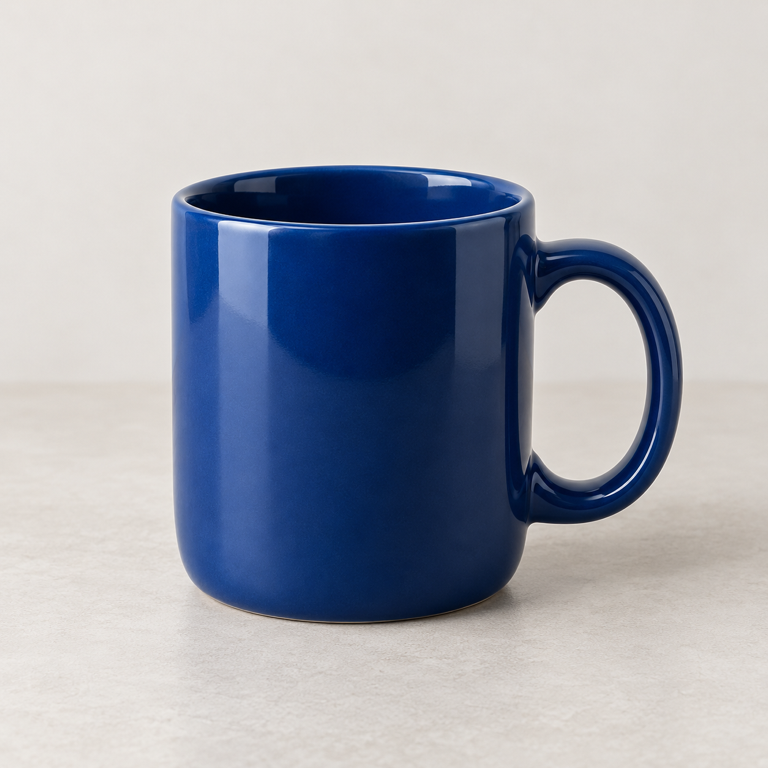
Try with a blue ceramic mug
Use the product photo to separate the mug from its tabletop background.
What to inspectLook around the handle, rim and base. Check the cutout on a light and a dark background before publishing.
Where this could help your company
Try the core task here. A company workflow can add your systems, review and access rules.
Product catalogues
Prepare consistent cutouts for product cards.
Sales proposals
Place equipment or merchandise cleanly into a proposal.
Marketing content
Reuse one reviewed product image across different layouts.
Try it step by step
- Open the blue ceramic mug example. The input photo is already prepared.
- Choose Load model and wait for Ready, then choose Remove background.
- Compare the original and transparent result. Inspect the handle opening and the outline.
- Download the PNG. Try your own permitted product photo to see whether the edge quality suits your layout.
What does background removal do?
The model estimates which parts of an image belong to its foreground subject. The Lab uses that result to make the background transparent and exports a PNG with the original image dimensions.
It does not generate a replacement scene, retouch the product or guarantee a perfect outline. The useful result is a cutout that your team can inspect.
Which details make a cutout usable?
Check narrow handles, fine edges, reflections and parts close in colour to the background. The checkerboard helps reveal transparency, but the final layout may show edge defects differently.
Keep the original photo and compare the product’s shape. If important details disappear, use a clearer photo or manual editing rather than publishing the result unchecked.
Questions about product images
Can I choose a new background?
The Lab downloads a transparent PNG. Place it on a background in your normal design or publishing tool.
Will every image work?
Busy scenes, transparent objects and fine detail can be difficult. Test the kinds of products your business actually sells.
Can this connect to our catalogue?
A company workflow can add image intake, naming, review and publishing to your catalogue system.
Specifications
Model: BEN2. Inputs are PNG, JPG or WebP, up to 5 MiB and 12 million pixels. Output is a transparent PNG preserving the image dimensions.
The first model and runtime download is approximately 246 MB plus app files. Choose Load model to start it. Image processing runs on your device; your file and result remain in the browser tab.
Build a repeatable product-content process
Choose a product category and an agreed image standard. Define the required crop, naming, background and review checks before connecting the output to your catalogue.
Garrich Torres Consultants can help connect intake, review and publishing. A useful pilot compares accepted cutouts and correction effort across the photos your team receives.